
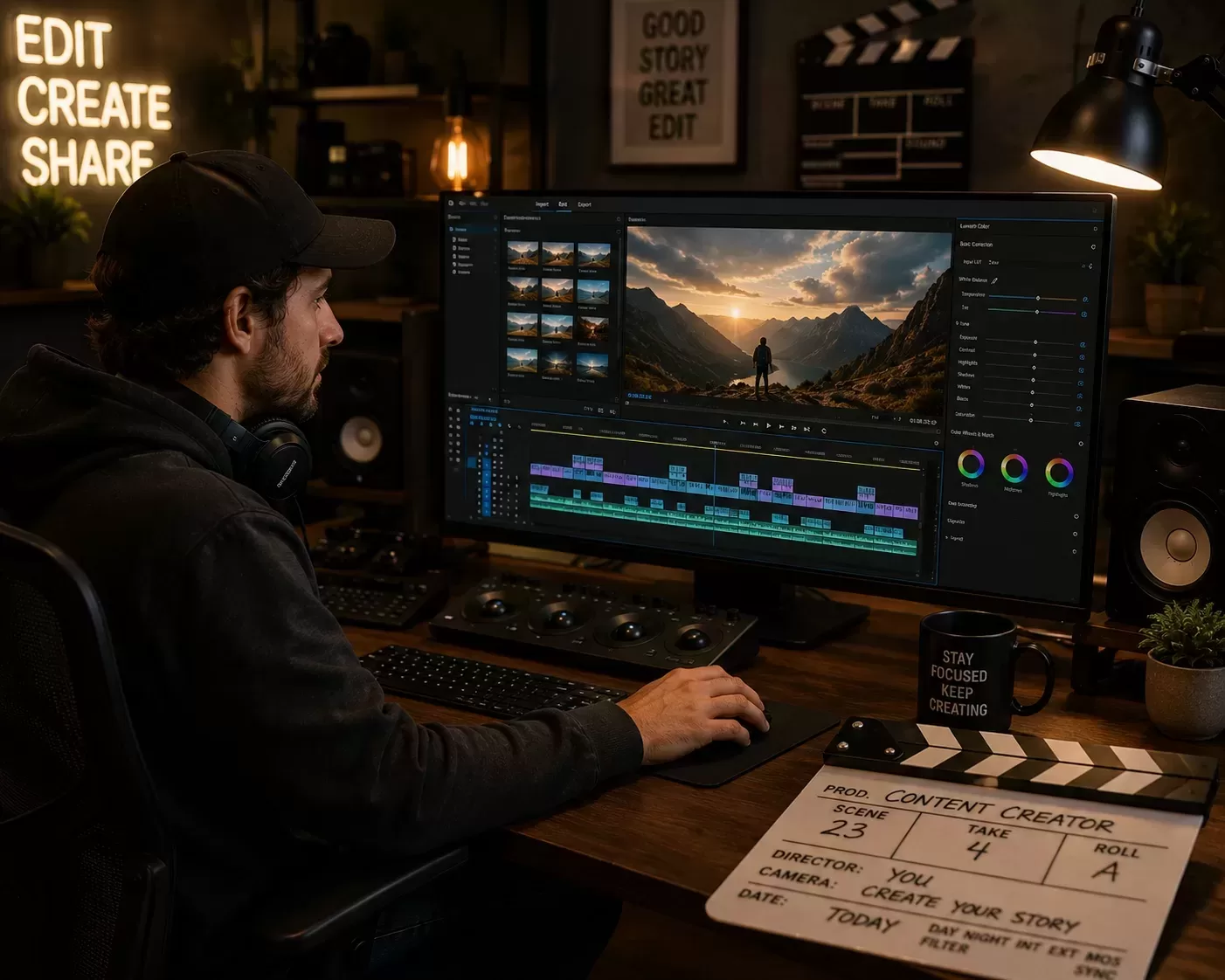
The right video editor depends far more on your platform, output format, and hardware than on which one is "best" in the abstract. A short-form editor optimized for vertical TikTok clips and a color-grading suite built for cinema finishing are solving very different problems, even though both are technically "video editing software."
Pricing and features below are accurate as of publish and may change — always confirm current details on the provider's site. See our Affiliate Disclosure.
Adobe Premiere Pro — The Industry Standard
Premiere Pro remains the most widely used professional desktop editor and the closest thing to an industry default for YouTube and freelance video work. Its biggest advantage is ecosystem: it integrates tightly with After Effects, Photoshop, and Audition, and most editors-for-hire already know it, which matters if you plan to eventually hand off editing to someone else.
- Best for: creators who collaborate with other editors, or who want skills that transfer directly to freelance/agency work
- Avoid if: you want a one-time purchase — Premiere is subscription-only, and the ongoing cost adds up for a solo creator on a tight budget
DaVinci Resolve — Best Free Option, Best Color Grading
DaVinci Resolve is professional-grade software with a genuinely usable free tier, and its color-grading tools are considered a step above every other editor on this list, including the paid ones. The tradeoff is a steeper learning curve — its node-based color page in particular takes longer to get comfortable with than most beginner-friendly editors.
- Best for: creators who care about visual/color quality and don't want an ongoing subscription
- Avoid if: you want the fastest possible path from raw footage to a published video with minimal learning curve
Final Cut Pro — Best for Solo Creators on Mac
Final Cut Pro is a one-time purchase, tightly optimized for Apple hardware, and genuinely fast — Apple Silicon optimization means even modest Mac hardware can outperform more expensive Windows machines running other editors on certain tasks. The catch is obvious: it's Mac-only, so it's not an option if you're on Windows or need to collaborate with Windows-based editors.
- Best for: solo Mac-based creators who want strong performance without a subscription
- Avoid if: you're on Windows, or you collaborate with editors who use other software
CapCut — Best for Short-Form and Mobile
CapCut has effectively become the default editor for short-form vertical video, particularly for TikTok and Reels-style content, with mobile and desktop versions that stay in sync. It's fast, has strong built-in AI features (auto-captions, background removal, templates), and has a genuinely free tier that covers most short-form needs.
- Best for: creators primarily publishing short-form vertical content
- Avoid if: you need advanced color grading, multi-track audio mixing, or long-form documentary-style editing — it's not built for that depth
Wondershare Filmora & iMovie — Best for Beginners
Filmora is consistently recommended as a beginner-friendly paid option with a gentler interface than Premiere or Resolve, while iMovie is free on every Mac and iPhone and remains one of the simplest ways to make a clean, basic edit with zero cost.
- Best for: total beginners who want to publish something clean without a steep learning curve
- Avoid if: you expect to need advanced effects, multi-cam editing, or professional color tools as you grow — you'll likely outgrow these within a year or two
How to Actually Choose
- On Windows and want free + professional-grade: DaVinci Resolve
- On Mac and editing solo: Final Cut Pro
- Publishing mostly short-form vertical video: CapCut
- Working with a team or freelance editors: Premiere Pro
- Brand new to editing and want the simplest path: iMovie (Mac) or Filmora (cross-platform)
One more factor worth weighing in 2026: editors who've adopted AI-assisted features — auto-transcription, silence removal, auto-captioning — report meaningful time savings on repetitive editing tasks. Most of the tools above now include at least some of these features, so it's worth checking what's built in before paying extra for a separate AI editing tool.
This article reflects our own evaluation of publicly available information and is not a guarantee of performance or fit for your specific workflow or hardware.
Looking for more of the software behind a working content operation? Explore the rest of the Build stage.